Monitoring
Admin Console → Monitoring watches your robots and tells you when one stops behaving. It answers the question Jobs cannot: not "did this run fail?" but "has a robot gone quiet?"
That distinction matters. A failed job is visible because it ran. A robot that never picked up its schedule produces no job at all, so nothing appears in the job list — which is exactly the failure people discover a week late.
Two tabs: Overview and Alerts.
Overview
| Panel | Shows |
|---|---|
| Monitoring Summary | Downtime, idle and total alert counts for the workspace |
| Alerts | Two pie charts — which alerts fire most, and which robots they belong to |
| Alert Logs | Every firing, with alert name, robot and timestamp |
Everything on this tab counts firings, not configured alerts — a workspace with alerts set up and nothing going wrong shows zeroes, which is the reading you want.
The two alert types
| Type | Fires when |
|---|---|
| Downtime | A robot stops being connected for longer than the duration you set |
| Idle | A robot is connected but has done nothing for longer than expected |
Both are worth having, and the pair covers the silent-failure case from both sides. Downtime catches the robot that lost its connection. Idle catches the one that is connected and healthy but is not being given work — a broken schedule, a disabled trigger, an upstream queue that stopped filling.
Adding an alert
New Alert, on the Alerts tab.
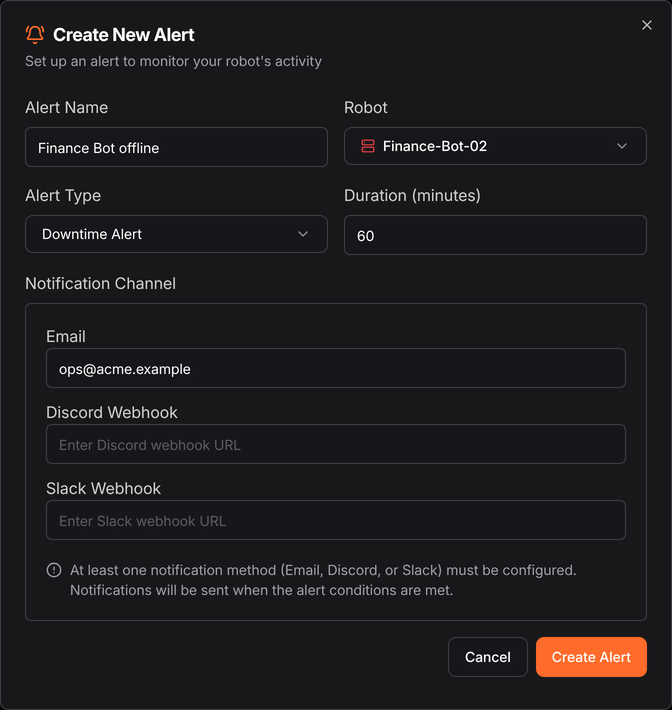
| Field | Notes |
|---|---|
| Name | What you will see when it fires — name it after the consequence, not the robot |
| Robot | One alert watches one robot |
| Alert Type | Downtime or Idle |
| Duration | How long the condition must hold before the alert fires. The minimum is 60 |
| Threshold | Idle alerts only — how long, in milliseconds, counts as doing nothing |
| Notification Channel | Email, Discord webhook, or Slack webhook |
At least one channel is required, and the Create button stays disabled until there is one. That is deliberate: an alert with nowhere to go is just a row in a table.
Duration is the field to think about. Too short and a robot rebooting for updates pages someone at 3am; too long and the alert arrives after the business day it was meant to protect. Start at roughly twice the longest normal gap and tighten from there.
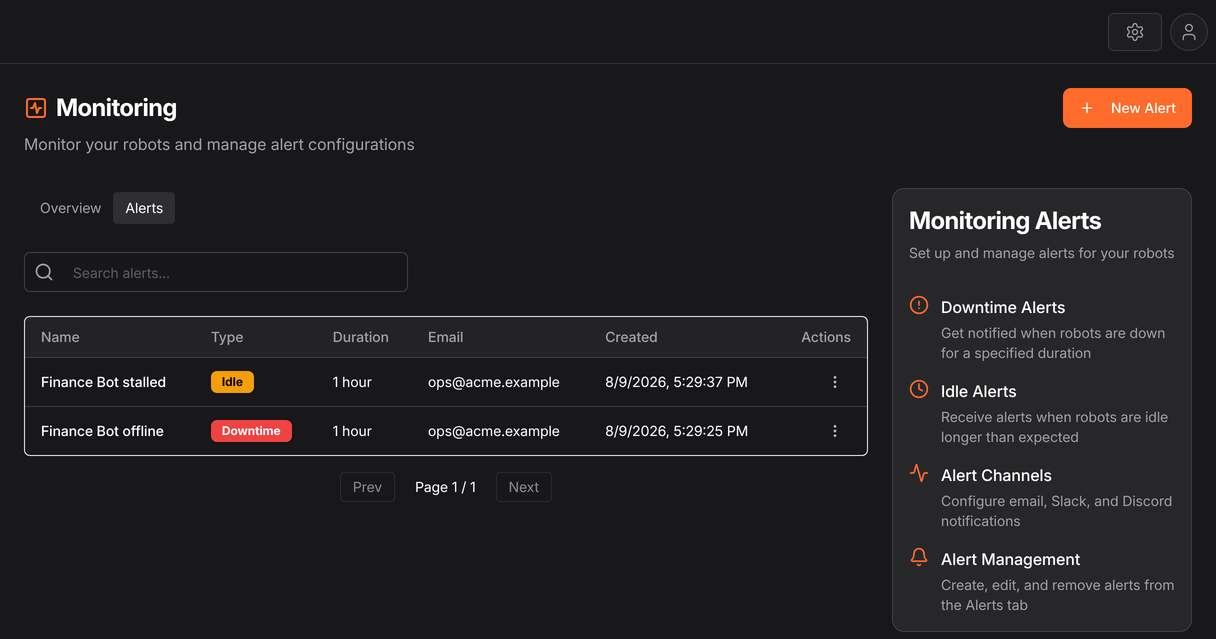
Alerting on the thing you actually care about
The habit worth forming: alert on the outcome, not just the process.
A downtime alert tells you a robot is offline. It does not tell you the nightly reconciliation did not run, because the robot might be offline at a time when nothing was scheduled. If a particular flow must run daily, the reliable signal is a flow that checks the last successful run and raises an alert itself — build it with the same nodes as anything else, and you have a monitor that understands your business rather than your infrastructure.
API
/v1/monitoring.* — see the API Playground. Alert logs are stored alongside the audit
log, so they are queryable by time range rather than by page.
Next
- Jobs — per-run history
- Robots — connection state
- Handling failure — failing usefully inside a flow