Form Builder
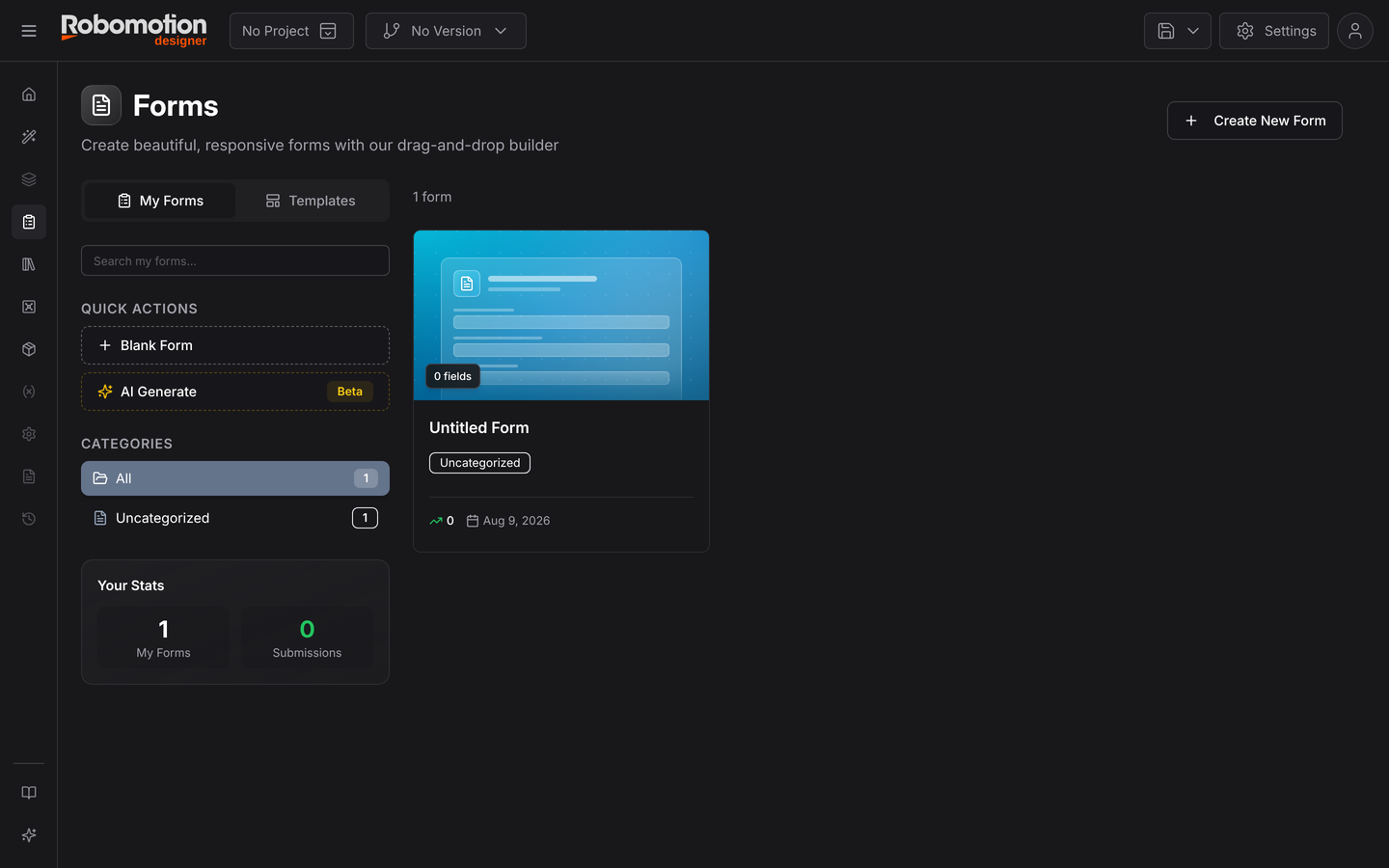
The Form Builder creates a web form that collects information from people and hands it to a flow. It is how an automation gets the one thing it cannot look up — an approval, an uploaded invoice, a reason code — from someone who has never opened the Designer.
Forms is on the Designer's left rail.
Where a form fits
Most flows begin with a schedule or a trigger. A form is the third way in: a person starts it, and their answers reach the flow as data.
Form: "Which supplier, and how much?"
  → Flow validates the amount
  → Switch on the threshold
       under  → post it
       over   → route for approval
The builder
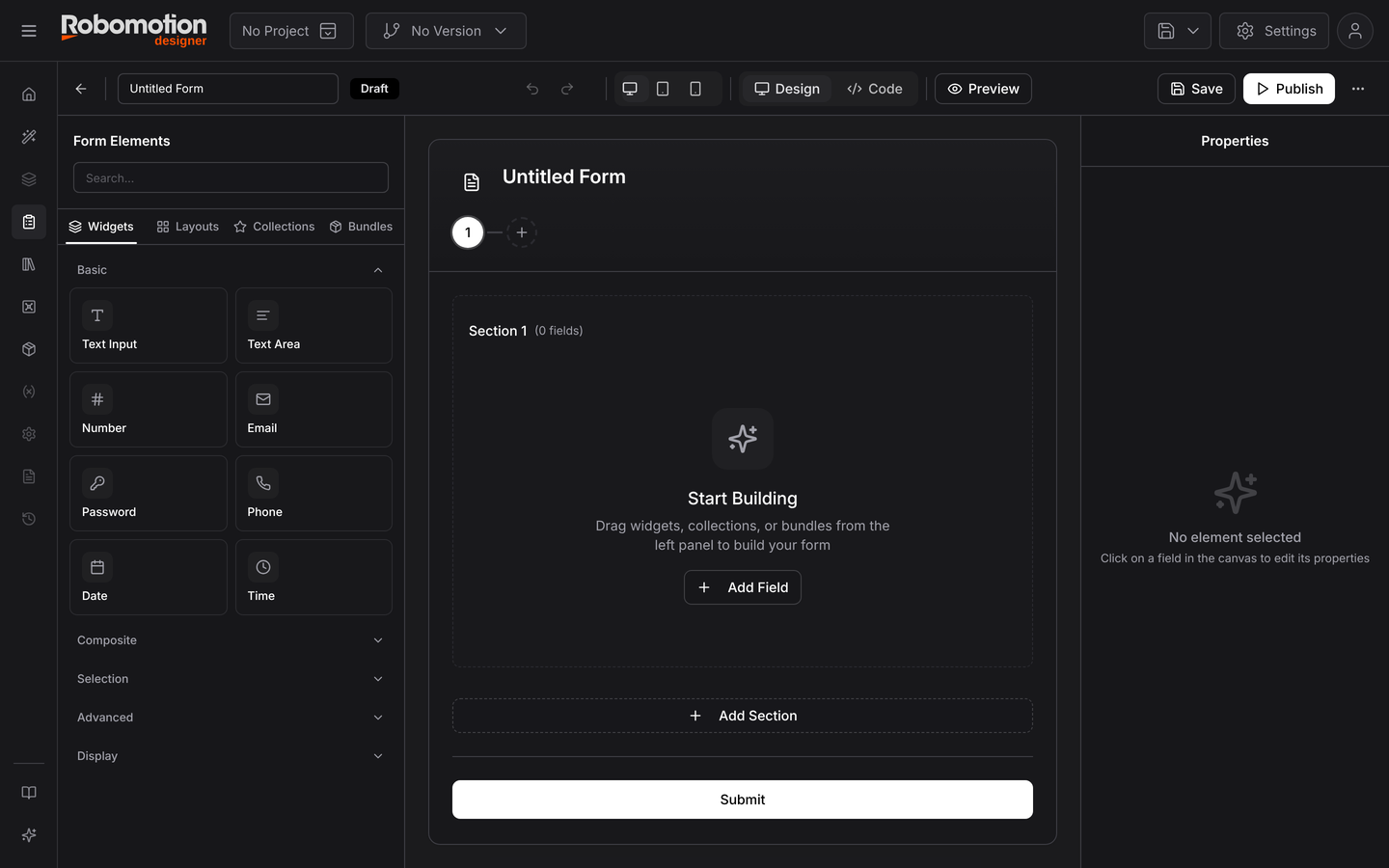
Four regions:
- Form Elements, left — everything you can drop on the form, with a search box and four tabs: Widgets, Layouts, Collections and Bundles
- The canvas, centre — the form itself, organised into sections
- Properties, right — settings for whichever field is selected
- The toolbar, top — undo/redo, device preview, a Design / Code toggle, Preview, Save and Publish, with the form's status (Draft until published) beside its name
The three device buttons preview desktop, tablet and phone widths. Forms get filled in on phones more often than people expect, so it is worth a look before publishing.
Widgets
| Category | Fields |
|---|---|
| Basic | Text Input, Text Area, Number, Email, Password, Phone, Date, Time |
| Composite | Full Name, Address |
| Selection | Dropdown, Radio Group, Checkbox, Rating, Scale (1–10) |
| Advanced | File Upload, URL, Signature, Hidden Field |
| Display | Heading, Paragraph, Divider, Spacer |
Signature captures a drawn signature — the usual reason a paper approval survives. Hidden Field carries a value the person never sees, which is how you stamp a submission with a campaign, a source, or an id you already know.
Layouts
Row, 2 Columns (50/50), 3 Columns (33/33/33), 1/3 + 2/3 and 2/3 + 1/3.
Worth using: a form where postcode and city sit side by side reads as one question rather than two, and short forms get filled in.
Collections — fields that already know things
These are widgets with the fiddly part already done:
| Field | What it brings |
|---|---|
| Phone | Country code selector plus number |
| Country | All 195 countries |
| Currency | Currency selector plus amount |
| Country + City | Picking a country auto-populates its cities |
| With validation | |
| ZIP Code | Five-digit input mask |
| SSN | Masked ***-**-**** |
| Date of Birth | Date input with age validation |
Bundles — whole groups at once
Pre-built field groups, dropped in one action: User Information (4 fields), Address (5), Company Info (3), Credit Card (4), plus ready-made Contact Form, Feedback, Event RSVP, Newsletter, Job Application, Login Form and Shipping Info.
Start from a bundle and delete what you do not need — faster than assembling ten fields, and the validation comes with it.
Sections and multi-step forms
The canvas is organised into sections, and the numbered indicator at the top turns them into steps. Add Section adds another.
One long form has a worse completion rate than three short steps, and sections are also where a progress bar comes from.
Design and Code
The Code tab shows the form as JSON, and Form Settings can import and export it. That is how you copy a form between workspaces, keep one in version control, or hand a colleague something to review without giving them access.
Form settings
Behind the builder's overflow menu:
| Setting | |
|---|---|
| Form Title, Description | What the form is called |
| Category, Tags | Organising a growing list |
| Theme Color | Accents and buttons |
| Custom Logo | Your own branding on the page |
| Progress Bar | Show progress across sections |
| Submit Button Text | "Submit" is rarely the best word |
| Success Message | What the person sees afterwards, or a redirect URL |
| Import / Export JSON | The form as a file |
There is also a small Form Statistics panel — field, section and required-field counts — which is a quick sanity check that a form is not longer than you meant it to be.
Publishing
Publish creates a shareable link, and asks for two things that explain how submissions travel:
A queue. Submissions are written to a queue, and your flow reads from there. The person submitting never waits on a robot, nothing is lost if none is free, and a burst of responses is absorbed rather than dropped.
A vault AES key. Submissions are encrypted with it before they are stored. The vault has to be unlocked to publish — see Vaults.
Then choose the kind of link:
| Permanent | A lasting URL. Share it, embed it, put it on a page — collects submissions until you delete it |
| Disposable | A one-off, for sending to one person for one submission |
Both come with an embed code, so a form can live inside your own site rather than as a link out to Robomotion. One form can have several published instances at once — a permanent public link and disposable ones for individual approvals.
Reading submissions in a flow
Because submissions land in a queue, the flow reads them the way it reads any queue:
- A Queue trigger starts the flow when an item is inserted, or a scheduled flow drains the queue on a timer.
- Queue nodes fetch the item — see Fetch Data.
- The answers arrive on the message object, keyed by field.
- The flow sets the item's final state, so you can see what was processed and what failed.
The field name becomes the key your flow reads. supplier_name is a better thing to find in a
message than text_input_3, and renaming it after the flow is built means editing both.
File Upload and Signature produce files, not text. The submission carries a reference the flow resolves — plan for a file that is missing or too large, because a person on a phone will eventually send you one.
See also
- Queues — where submissions land
- Queue Trigger — starting a flow on submission
- Vaults — the key submissions are encrypted with