Logs
Logs on the Designer rail collects the debug output from your runs — and lets you diff two of them against each other.
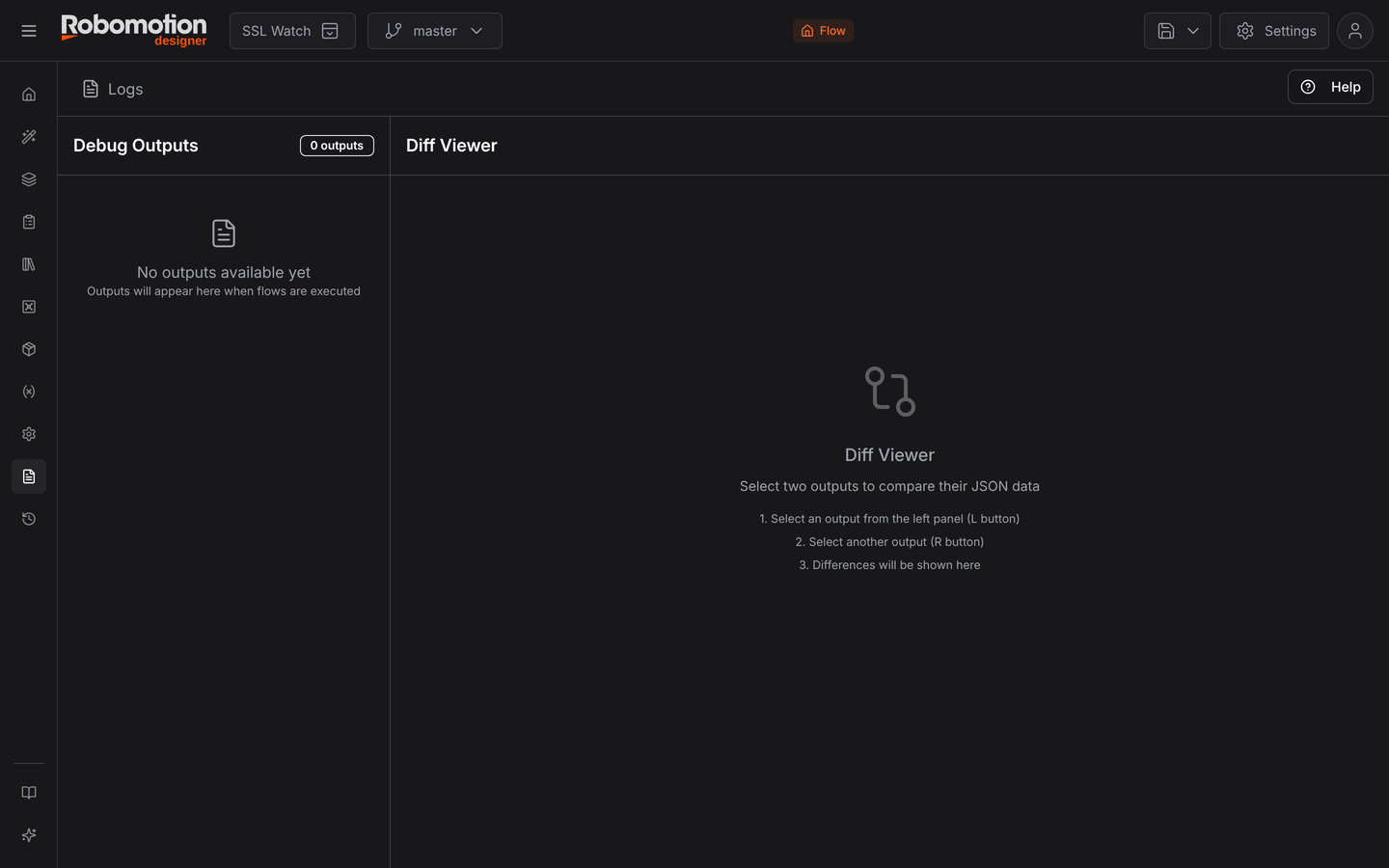
Two panels:
- Debug Outputs, left — one entry per output, from every Debug node that fired. The counter at the top says how many you have.
- Diff Viewer, right — a JSON comparison between any two of them.
Diffing two outputs
This is the part worth knowing about, because it answers the hardest debugging question there is: the flow worked yesterday and does not today — what is different?
- Pick an output in the left panel with its L button
- Pick another with R
- The differences appear on the right
Two runs of the same flow, side by side, with only the changed fields highlighted. Reading two large JSON objects by eye and spotting the one field that moved is the thing people waste an afternoon on.
Some ways it earns its keep:
- A good run against a bad one. The field that differs is usually the cause.
- Before and after a change. Confirm you changed what you meant to and nothing else.
- Two items from a loop. When one iteration of a For Each fails and the others do not, diff a working item against the failing one.
Where output comes from
Outputs appear when a flow runs on a connected robot and passes a Debug node. No robot, no Debug node, or a Debug node with Active switched off means an empty panel.
For runs that already happened elsewhere — scheduled, triggered, on someone else's robot — the logs are in Admin Console → Jobs instead.