Convert currency in a browser
We will build a flow that uses Google search to convert a dollar amount to euros: it asks you for a number, searches for the conversion, scrapes the answer off the results page and shows it in a dialog.
Create Flow
-
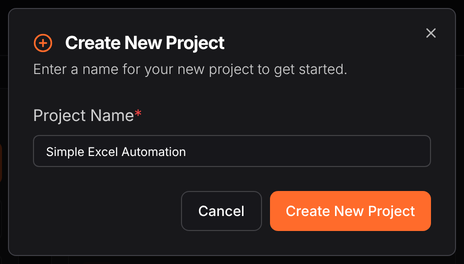
Open the Designer and click Create New Project.

-
Name it and press Create New Project.
The project name sits in the top bar next to the branch selector; clicking it is how you move between projects later.

-
Build the flow by dragging nodes from the palette, or by right-clicking the empty canvas and searching by name.
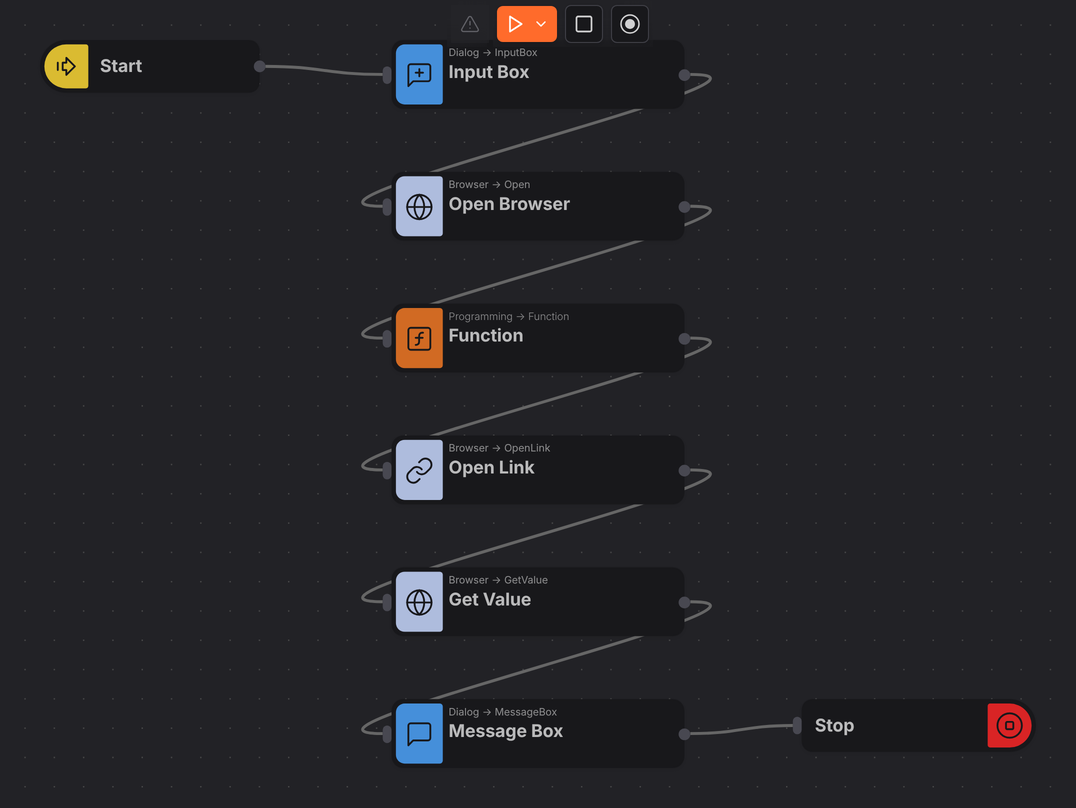
The nodes used, in order:
Node What it does here Trigger → Inject Starts the flow Dialog → Input Box Asks for the dollar amount Browser → Open Browser Launches Chrome Programming → Function Builds the Google search URL Browser → Open Link Navigates to it Browser → Get Value Reads the converted amount off the page Dialog → Message Box Shows the result Flow → Stop Ends the flow noteThe default node names are kept here, but renaming them pays off on anything larger. "Get Value" says what the node is; "Read Converted Amount" says what it is for.
-
Click the Input Box node and set its properties. The Output is the important half — whatever the user types lands in
msg.amount.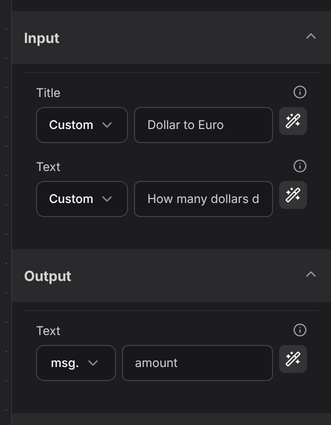
-
Click the Function node, open its editor, and paste:
var q = msg.amount + "+dollar+to+euro";msg.link = "https://www.google.com/search?q=" + q;return msg;This is the whole trick of the flow: a search query is just a URL with the question in it.
-
Click Open Link and point the URL at the
linkthe function built.
-
Click Get Value and set the Selector.

Here is the copyable version:
//*[@data-value]Selectors on someone else's pageThat XPath describes Google's markup on the day this was written, and Google is free to change it. If the flow starts returning nothing, check the selector first — the Inspect tool is how you find a new one.
-
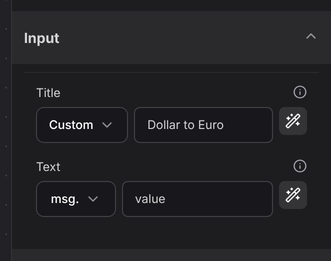
Click Message Box and set the text to the value you just scraped.
-
Save with the save icon, or Ctrl+S.

Run Flow
-
Press the play icon on the canvas toolbar and choose where to run.

Local runs on a robot connected to your own machine; Cloud runs on Robomotion's infrastructure. Choose Local here, so you can watch the browser work.
noteLocal is only available if you have a robot connected. If you have not set one up, follow install a robot and then connect it.
-
An input box appears on your desktop. Enter an amount and press OK.

-
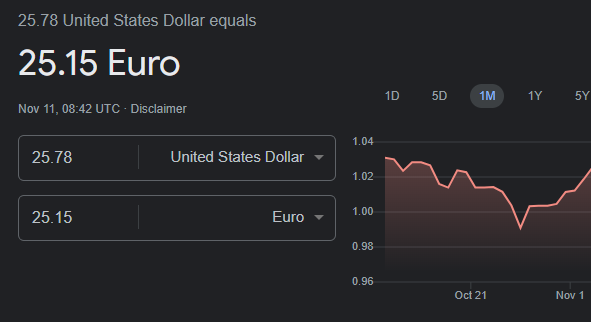
The browser the flow started loads the Google results.
-
A message box shows the value the flow scraped.

The flow is paused at the Message Box while that dialog is on screen — the browser stays open until you click OK. That is worth remembering: a dialog on an unattended robot waits forever, because nobody is there to dismiss it.