Post a message to Discord
We will register a bot with Discord, keep its token somewhere safe, and post a message to a channel from a flow.
Create the bot on Discord
This half happens on Discord's side, not Robomotion's.
-
Sign in at discord.com and open the applications page.
-
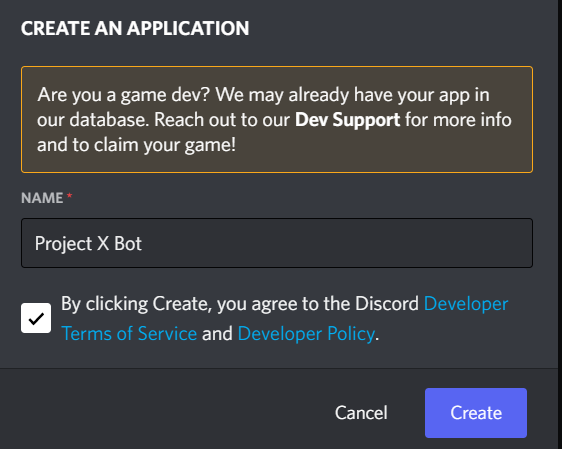
Top right, click New Application.

-
Name it and create it.
-
In the left menu click Bot, then Add Bot.
-
Click Reset Token and copy the token. This is the credential the flow will use — treat it like a password, and keep it somewhere you can paste from in a moment.
-
In the left menu click OAuth2 → URL Generator. Under Scopes tick bot, then pick the bot permissions you need. This tutorial only needs Send Messages.
-
Copy the URL generated at the bottom of the page and open it. Choose the server to add the bot to, click Continue, then Authorize. The bot is now a member of your server.
Store the token in a vault
A bot token grants control of the bot, so it does not belong in a node property where it would be visible to anyone who opens the flow. Robomotion keeps credentials in Vaults, encrypted and referenced by name.
-
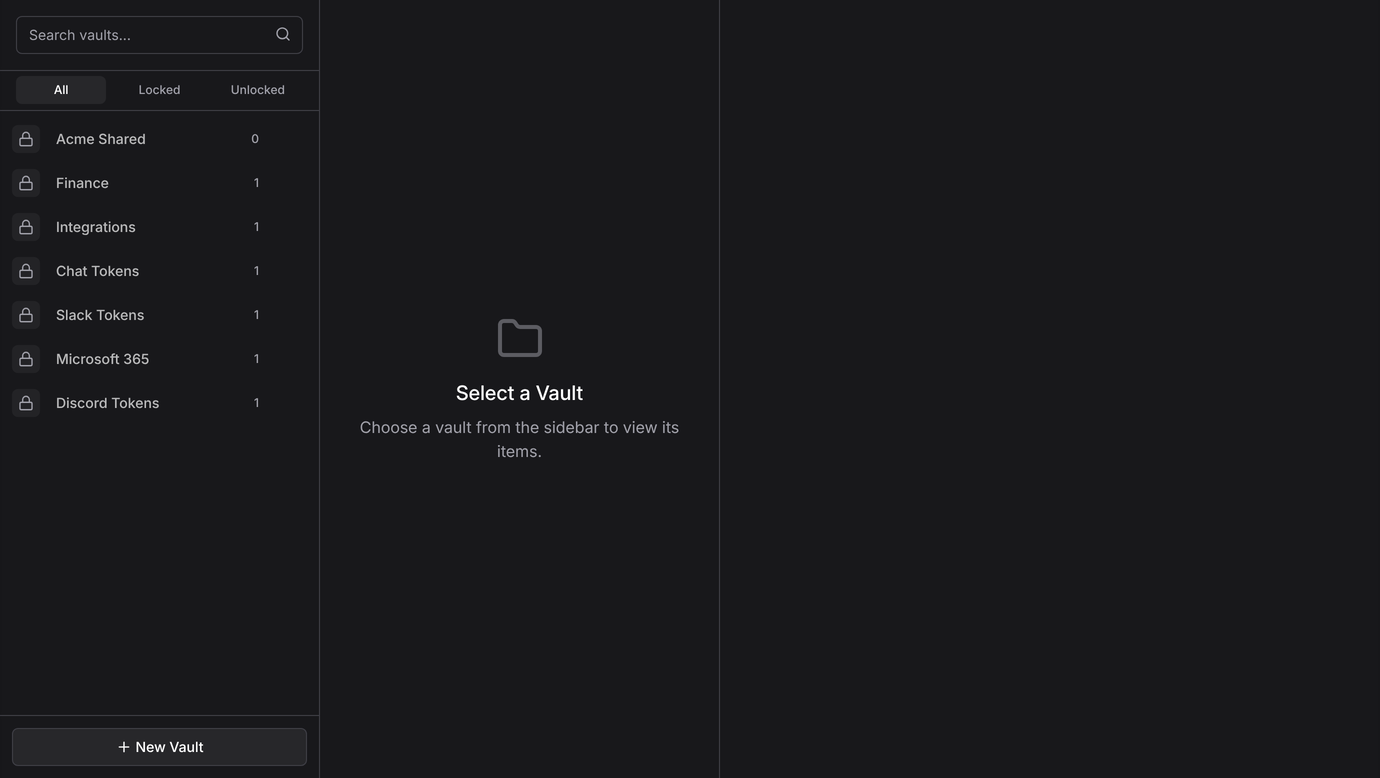
Open Vault from the left rail. Create a vault if you do not already have one — the vault walkthrough covers creating one and the Secret Key it gives you.
 Save the Secret Key
A vault's Secret Key is shown once, when the vault is created, and cannot be recovered. A vault whose key you did not save can never be opened again.
-
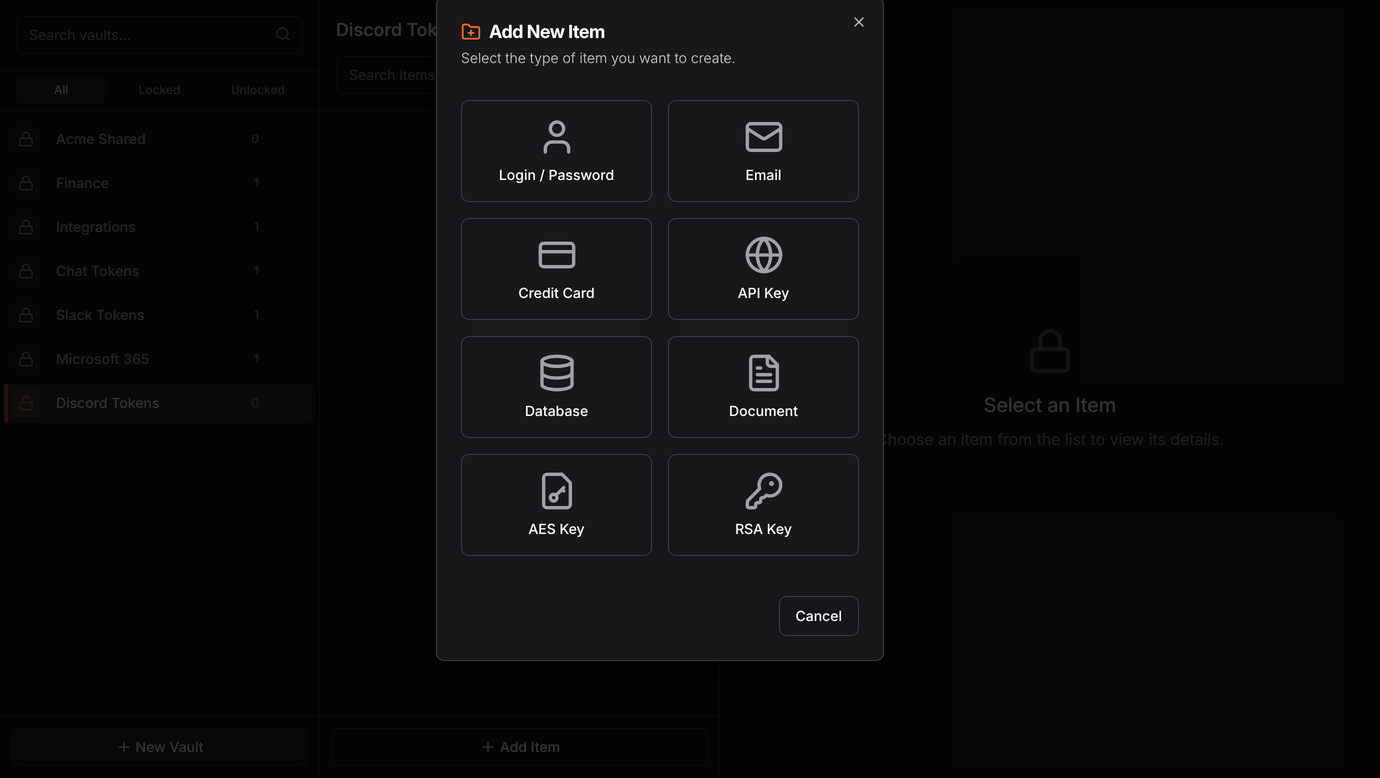
Open the vault, click New Item, and choose API Key.
-
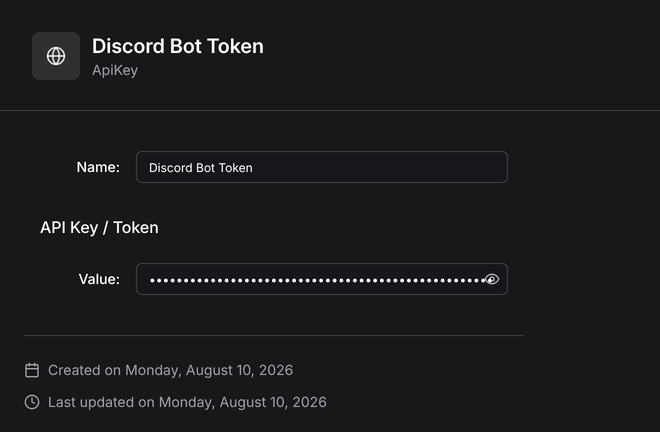
Name the item something you will recognise in a dropdown, paste the bot token into the value field, and Save.
Build the flow
-
Install the Discord Bot package — see installing packages.
-
Create a project and build this:

Name on the canvas Node Start Trigger → Inject Connect Discord Bot → Connect Send Channel Message Discord Bot → Send Message Disconnect Discord Bot → Disconnect Stop Flow → Stop Connect logs the bot in and puts a client id in the message; every node after it uses that id to say which bot session it means. Disconnect closes the session — do it even on a short flow, for the same reason you close a file you opened.
-
Click Connect and pick your vault item under Bot Token.
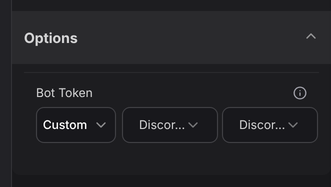
The dropdown lists vaults and their items. The token itself never appears in the flow — only a reference to it.
-
Click Send Channel Message and fill in the Channel Id and Message Text.
To get a channel id, right-click the channel in Discord and choose Copy Channel ID.
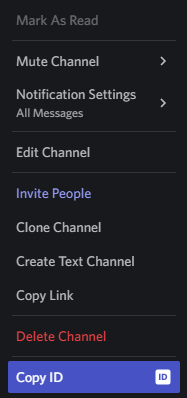 note
noteNo Copy Channel ID in the menu? Turn on Developer Mode in Discord under Settings → Advanced.
-
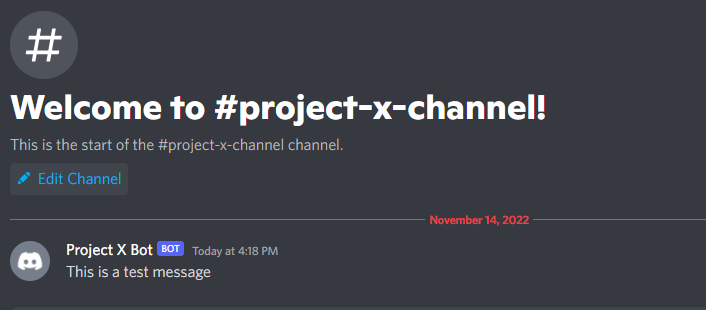
Run the flow. The message appears in the channel.
Try changing it
- Put the message text in a Function node so it can include a date, a count, or anything else the flow worked out.
- Trigger it from a Schedule for a daily standup post.
- Swap Send Message for Send Direct Message to reach one person instead of a channel — see the Discord package reference.