Write a CSV file
A short one: build a table in a Function node and write it out as a .csv file.
-
Create a new project from the Designer.
-
Build this flow by dragging nodes from the palette, or by right-clicking the empty canvas and searching by name.

Name on the canvas Node Start Trigger → Inject Prepare Table Programming → Function Write CSV CSV → Write CSV Debug Programming → Debug -
Click Prepare Table, open its editor, and paste:
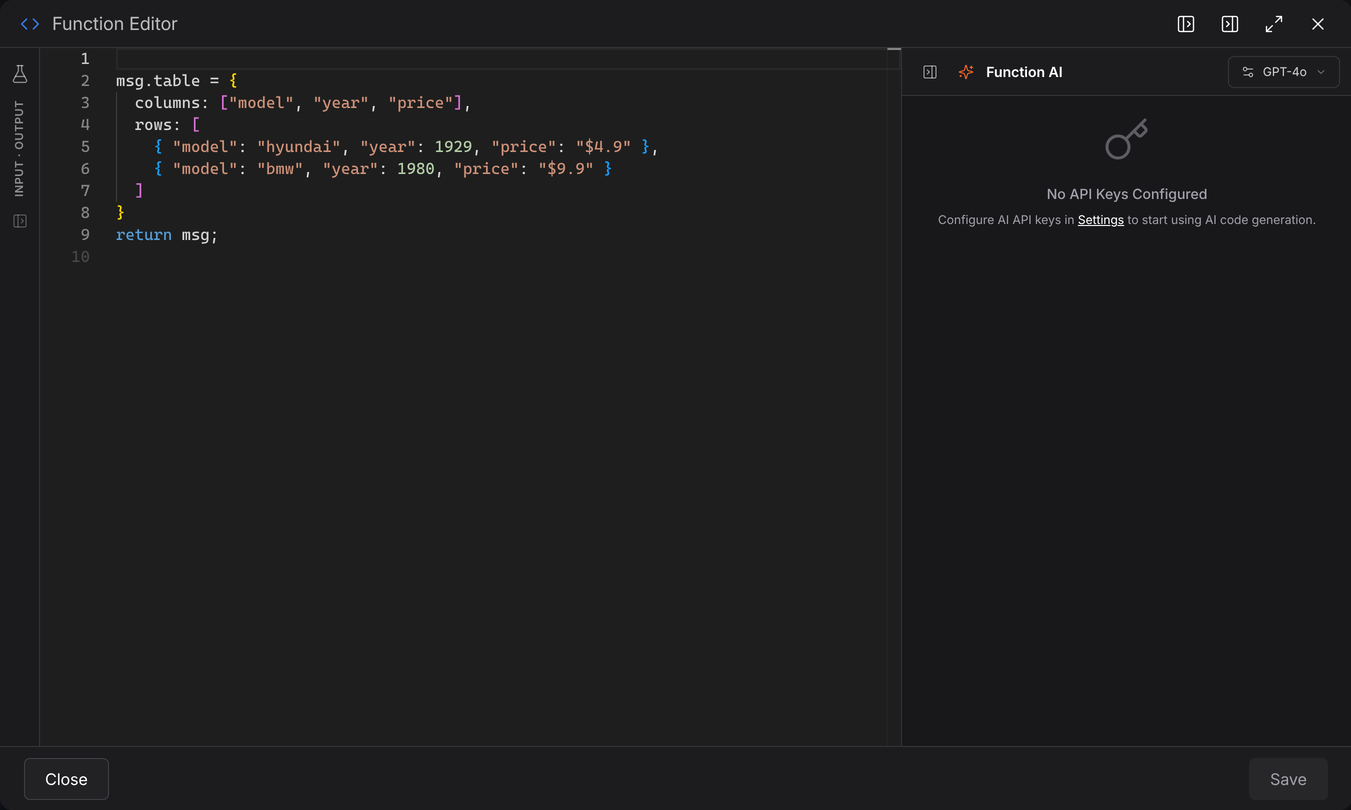 msg.table = {columns: ["model", "year", "price"],rows: [{ "model": "hyundai", "year": 1929, "price": "$4.9" },{ "model": "bmw", "year": 1980, "price": "$9.9" }]}return msg;note
This
{ columns, rows }shape is Robomotion's data table — the same structure the Excel and CSV nodes read and write, and the same thing an Excel Get Range hands back. Nothing here is CSV-specific. -
Click Write CSV and set the file path and the table to write.
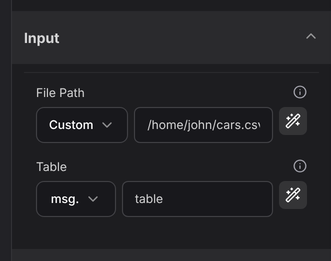 note
noteChange the File Path to somewhere that exists on your machine.
-
Run the flow and open the file. The
columnsbecome the header row, and each object inrowsbecomes a line.model,year,pricehyundai,1929,$4.9bmw,1980,$9.9
Try changing it
- Turn Headers off in the Write CSV options and run again — the header line disappears.
- Swap Write CSV for Append CSV and run twice; the rows stack instead of overwriting.
- Replace the Function node with an Excel Get Range and you have an xlsx-to-csv converter, because both nodes speak the same table shape.