Handling failure
Twelve minutes. Everything so far assumed things go right. They will not: the site will be down, the file will be locked, the spreadsheet will have a blank row. This tutorial is about the difference between a flow that demonstrates well and a flow you can leave running.
What you need
- Tutorial 4 finished
The flow you are building
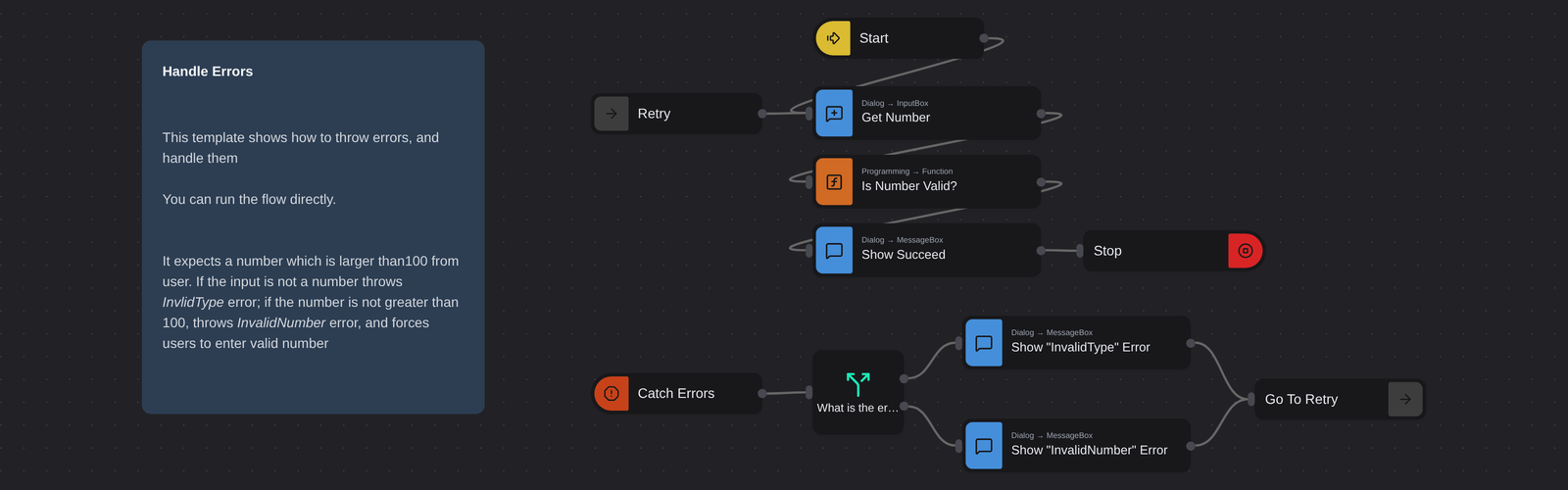
Look at the shape: there are two starting points. The upper chain begins at a Catch
node and only runs when something goes wrong.
Import it
On the Designer home page, scroll to Start with an example and pick Handle Errors.
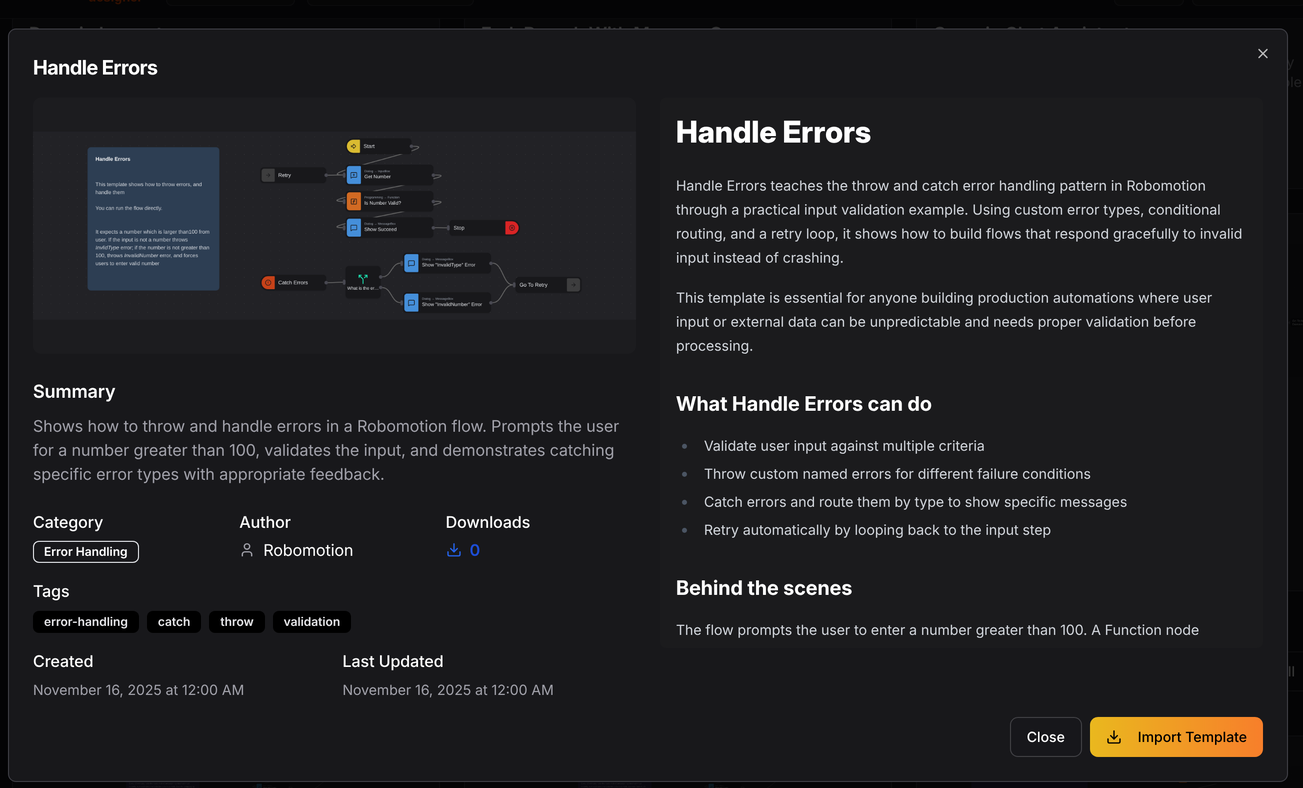
The details panel is worth reading before you press Import Template — every template carries a summary, its category and tags, and a Behind the scenes section explaining how it works. That habit pays off with the more complicated ones.
Import it and open it. It asks you for a number greater than 100, and keeps asking until you give it one — which is a small enough problem to see the whole mechanism at once.
Three ways to deal with failure
Robomotion gives you three, and choosing the right one is most of the skill:
| Approach | What it does | Use it when |
|---|---|---|
| Continue On Error | A per-node switch. The node fails quietly and the flow moves on. | The step is optional. You saw this on Copy File in tutorial 4. |
| Catch (Trigger → Catch) | A second entry point that fires when a watched node throws. | You need to react — retry, notify, clean up. |
| Let it fail | The run stops and is recorded as Failed. | A human genuinely needs to look at it. |
The worst choice is a fourth one people reach for by accident: switching Continue On Error on everywhere, so nothing ever fails and nothing ever works either.
Throwing an error on purpose
Open Is Number Valid?:
if (isNaN(msg.number)) {   // not a number at all
  throw "InvalidType"
}
if (msg.number <= 100) {
  throw "InvalidNumber"
}

return msg;
throw inside a Function node raises an error that a Catch node can pick up. Two things
follow from that:
- You can define your own failure cases. Nothing about a
42is technically wrong — the flow decides that "not greater than 100" counts as an error. - The thrown string becomes the error's identity, arriving as
msg.error.message. Giving each case a distinct name is what lets the next node tell them apart.
The Catch node
Select Catch Errors and look at its configuration. It watches specific nodes — here,
just Is Number Valid? — rather than the whole flow.
That is a deliberate choice worth copying. A Catch wired to everything turns every unrelated bug into "invalid number", and you lose the ability to tell a validation problem from a network problem.
When the watched node throws, the Catch fires with msg.error populated, and the chain
below it runs.
Routing by error type
What is the error type? is the same Switch node from tutorial 3, applied to errors:
msg.error.message === "InvalidType"
msg.error.message === "InvalidNumber"
Each branch shows a message that tells the user what specifically was wrong — "not a number" versus "not greater than 100". Compare that with a single "Invalid input" dialog, which is the behaviour you get for free and is worth much less.
Retrying
Both error branches converge on Go To Retry, which jumps to the Retry label — and that
label leads straight back into Get Number.
So the flow asks again. This is the Label/GoTo pair from tutorial 4 doing something different: not iterating a list, but retrying a step.
This flow retries forever, which is fine when a human is sitting there and can press Cancel. An unattended flow that retries forever is a robot stuck in a loop at 3am, and it will hold a licence and a schedule slot while it does it.
For anything unattended, count the attempts:
msg.attempts = (msg.attempts || 0) + 1;
if (msg.attempts > 3) {
  throw "TooManyAttempts";   // let this one out to a human
}
return msg;
Then give TooManyAttempts its own branch that notifies someone and stops.
Run it
- Run the flow and type
abc. You get Invalid Type, then it asks again. - Type
50. You get Invalid Number, and it asks again. - Type
150. You get Succeed and the flow stops.
Three paths through one flow, and you exercised all of them in thirty seconds. Do this with your own flows — a branch you have not run is a branch you have not tested.
Where to see failures afterwards
Runs are recorded whether you are watching or not:
- Admin Console → Jobs lists every run with its status, and a failed run keeps its error message and logs.
- Debugging covers stepping through a flow in the Designer.
- Exceptions is the reference for this material.
Try changing it
- Add the attempt counter from the warning above, and a third Switch branch for
TooManyAttemptsthat stops the flow. - Add a branch for an error type you never throw and confirm nothing reaches it — then remember tutorial 3's lesson about what a Switch does when nothing matches.
Next
Working with Excel data → — real business data, and driving an application that has no API.