Passing data between nodes
Ten minutes. You will read a text file from disk and display its contents. Along the way you will learn the one concept that everything else in Robomotion rests on: the message object.
What you need
- Tutorial 1 finished
- A text file on the machine your robot runs on. Create one called
test.txtin your home folder with a couple of lines in it.
The flow you are building
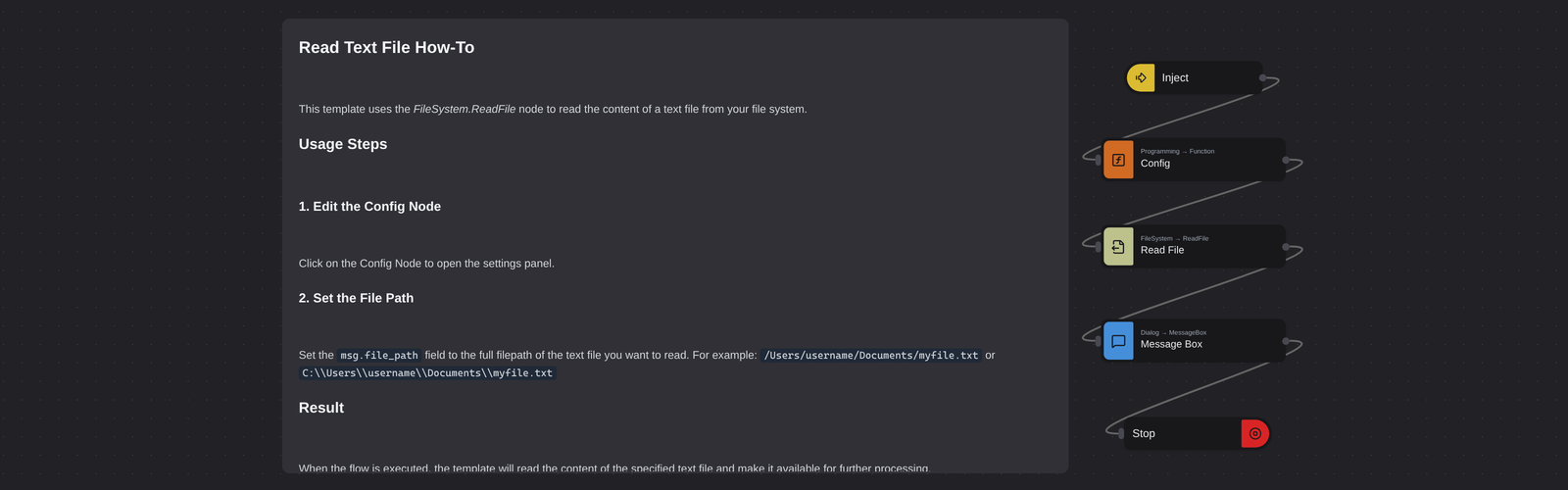
The message object
Every node receives one JSON object, and passes one JSON object on. It is called msg.
When a trigger starts a flow, msg looks roughly like this:
{
  "id": "cahuccj3cf1scmmfcc4uqmjwgt",
  "payload": 1668877379280
}
Each node then reads fields it cares about and adds fields of its own. By the end of a
long flow, msg has accumulated everything the flow has learned.
This is why nodes compose. Read File does not know or care that a Function node
produced the path it is reading — it just knows to look at msg.file_path.
Two consequences worth internalising now:
- A node can only use data that some earlier node put into
msg. If a property is empty at runtime, the usual cause is that the node producing it runs later, or not at all. - Field names are yours to choose.
msg.file_pathis a convention, not a requirement.
The Config-node pattern
Look at the flow diagram again. The second node is a Function named Config, and its
only job is to set up values for the nodes after it.
You will see this in nearly every template in the library, and it is worth copying, because it collects everything a reader might need to change into one place. The alternative — typing literal values into six different nodes — means editing six nodes to move the flow to a new machine.
Build it
-
Create a project named
Passing Data. -
Add and connect these nodes:
Node Where Rename to Inject Trigger → Inject InjectFunction Programming → Function ConfigRead File FileSystem → ReadFile Read FileMessage Box Dialog → MessageBox Message BoxStop Flow → Stop Stop -
Edit Config and paste:
msg.file_path = global.get("$Home$") + '/test.txt';return msg;global.get("$Home$")reads a built-in variable holding the home directory of whoever the robot runs as. Hard-codingC:\Users\John\test.txtwould work on your machine and break on the server — this does not. -
Select Read File and set Path to Message →
file_path. -
Select Message Box and set:
Property Value Title Custom → Output:Text Message → textRead Fileputs what it read intomsg.text. Each node's documentation lists the fields it writes — see FileSystem. -
Save and run.
Watch the message change
This is the habit worth forming.
Add a Debug node (Flow → Debug) after Config, and another after Read File. Run the flow again and open the Debug panel.
The first shows:
{ "id": "…", "payload": …, "file_path": "/home/john/test.txt" }
The second shows the same object with a text field added, holding your file's contents.
You can now see the mechanism directly: one object, growing as it moves right. When a flow misbehaves, this panel is where you find out why — nine times in ten the answer is that a field you expected is missing or is not the shape you assumed.
Custom versus Message
Every node property offers a choice, and it matters:
| Kind | Meaning | Use it when |
|---|---|---|
| Custom | A literal you type into the node | The value never changes |
| Message | Read this field from msg at runtime | The value is computed, or differs per run |
| Variable | Read a flow or global variable | The value is shared across the flow — see Variables |
In this flow, the title is Custom because it is always Output:, and the text is Message
because it is different every time.
Try changing it
- Point
msg.file_pathat a file that does not exist. The flow fails atRead File. Tutorial 5 is about handling exactly that. - In Config, add
msg.file_path = msg.file_path.toUpperCase();and see it break on Linux but not on Windows. Paths are data like anything else, with the same hazards.
Next
Making decisions → — reacting to what the flow finds instead of running the same five steps every time.