App Log
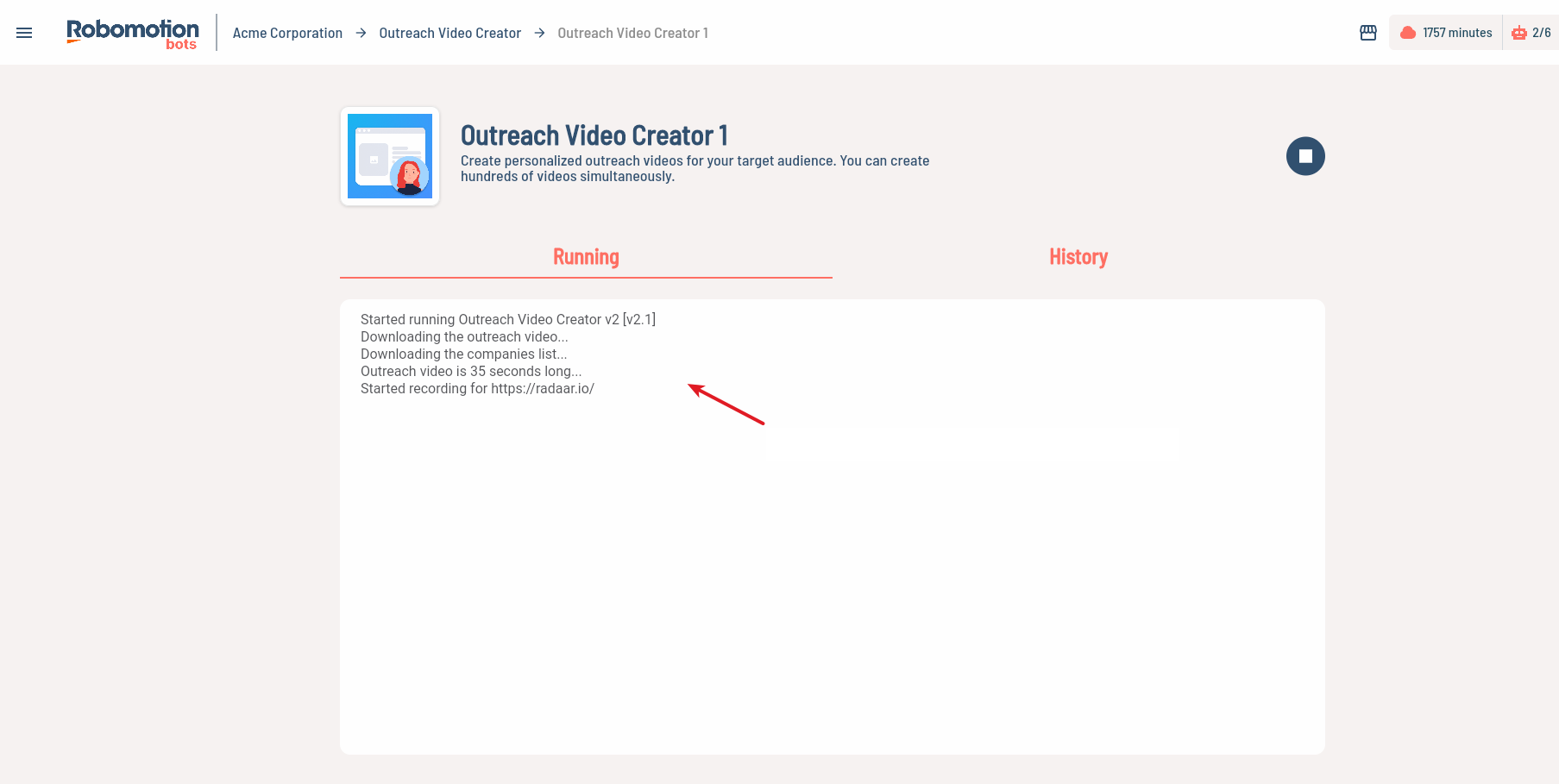
Logs a message to the designated output for your app. This log message can be seen in Robomotion Apps.
Common Properties
- Name - The custom name of the node.
- Color - The custom color of the node.
- Delay Before (sec) - Waits in seconds before executing the node.
- Delay After (sec) - Waits in seconds after executing node.
- Continue On Error - Automation will continue regardless of any error. The default value is false.
if ContinueOnError property is true, no error is caught when the project is executed even if Catch node is used.
Input
- Log - The message to log.
How It Works
The App Log node sends log messages to the Robomotion Apps interface, allowing users to monitor automation progress in real-time. The execution follows these steps:
- Delay Before - Waits for the specified delay before execution (if configured)
- Log Message Retrieval - Retrieves the log message from the input variable
- Context Validation - Validates that the automation is running in an application context:
- Checks for
$InstanceID$global variable - Checks for
$RunID$global variable
- Checks for
- Log Transmission - Sends the log message to Robomotion's application service using the instance and run IDs
- Display - The log message appears in the Robomotion Apps interface for the user to view
- Delay After - Waits for the specified delay after execution (if configured)
The logs are visible in real-time in the Robomotion Apps UI, providing transparency into automation execution.
Requirements
- Robomotion Deskbot - This node only works with Robomotion Deskbot
- Application Context - Must be running within a Robomotion App instance
- App In Node - Requires an App In node earlier in the flow to establish context
- Network Connection - Active connection to Robomotion service
Error Handling
| Error Code | Description | Common Cause |
|---|---|---|
Core.Application.Log.ErrOnCreate | Configuration parse error | Invalid node configuration or corrupted flow |
Core.Application.Log.ErrOnMessage | Message parse error | Invalid input message format |
Core.Application.Log.InvalidLog | Invalid log message | Log input cannot be converted to string |
Core.Application.Log.InvalidInstanceID | Instance ID not found | Running outside of application context |
Core.Application.Log.InvalidRunID | Run ID not found | Running outside of run context |
Core.Application.Log.ErrOutputMarshal | Output marshalling error | Failed to serialize output message |
Usage Examples
Example 1: Progress Updates
Log progress updates during long-running automation:
Log: "Processing item {{index}} of {{total}}"
Keeps users informed about automation progress.
Example 2: Milestone Logging
Log when reaching important milestones:
Log: "Successfully downloaded {{fileCount}} files"
Provides confirmation that key steps completed successfully.
Example 3: Data Logging
Log extracted or processed data:
Log: "Found {{recordCount}} matching records"
Shares relevant information discovered during automation.
Example 4: Debug Information
Log debugging information for troubleshooting:
Log: "Current status: {{status}}, Next action: {{action}}"
Helps diagnose issues when automation doesn't behave as expected.
Usage Notes
- Real-time Display - Logs appear immediately in the Robomotion Apps interface
- String Conversion - Non-string values are automatically converted to strings
- Context Required - Only works when running through Robomotion Apps (not standalone)
- No Persistence - Logs are for real-time viewing; they are not permanently stored
- Performance - Excessive logging can slow down automation; use judiciously
- User Visibility - All logs are visible to the user running the app
Tips
- Progress Indicators - Use logs to show progress on long-running tasks
- Meaningful Messages - Write clear, informative log messages that users can understand
- Use Variables - Include dynamic data using variables for contextual information
- Error Context - Log relevant context before potential error points
- Avoid Spam - Don't log every single step; focus on meaningful milestones
- User Language - Write messages in user-friendly language, not technical jargon
- Testing - Use logs during development to debug your automation flow
- Conditional Logging - Use Switch nodes to log only when certain conditions are met