Flow Designer
The Flow Designer is where flows are built. It opens on a home page, not a canvas:
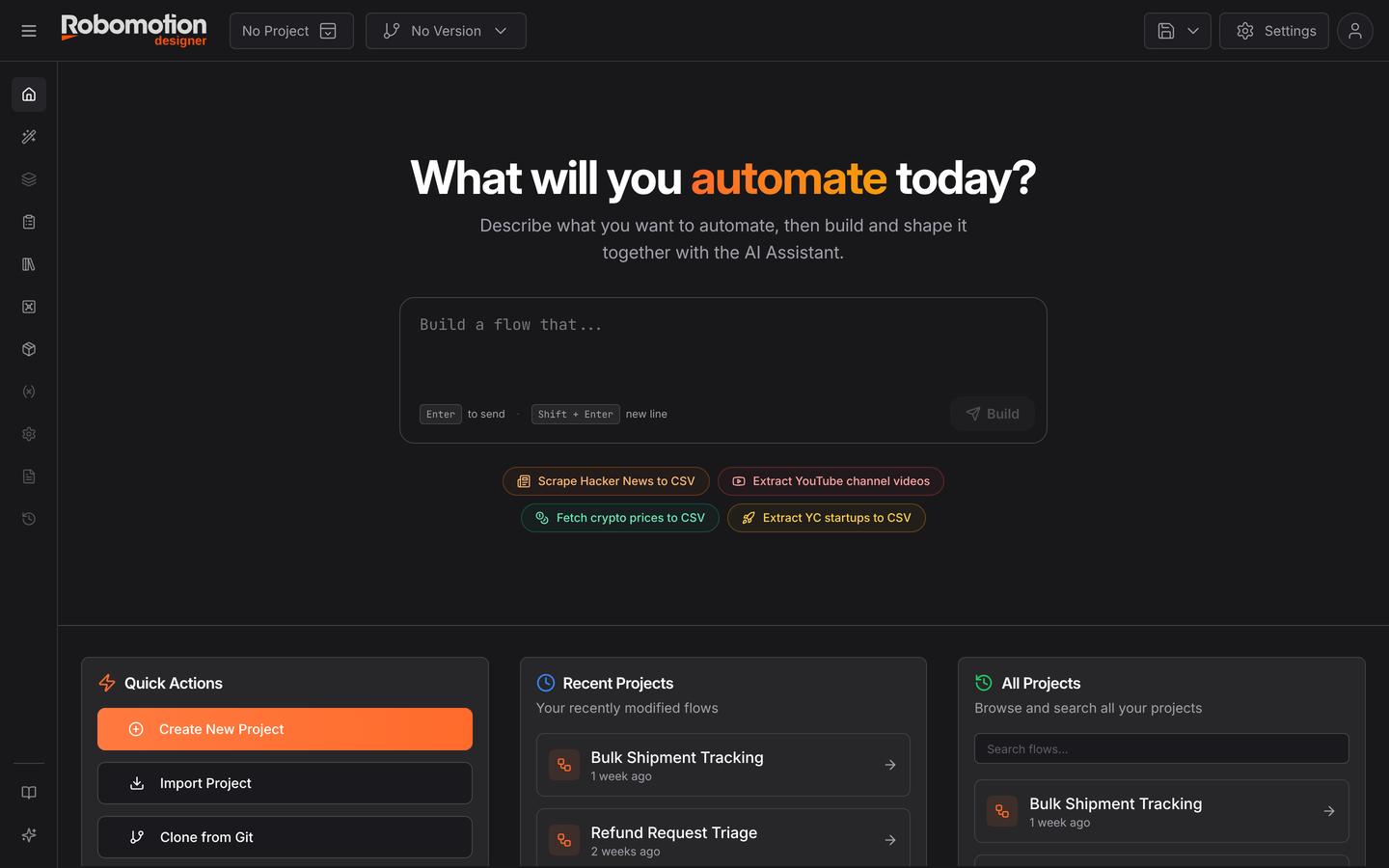
Two ways to start a flow
Worth knowing both, because they suit different situations and the Designer offers the first one first.
Describe it, and build together with the AI Assistant
The prompt box — "Build a flow that…" — takes a description in plain language and produces a working flow you then shape. The suggestion chips give the flavour of what it expects: Scrape Hacker News to CSV, Fetch crypto prices to CSV, Extract YouTube channel videos.
This is the fastest route from an idea to something running, and it is particularly good at the shape of a flow — which nodes, in what order, wired how. Treat what comes back as a first draft: check the selectors, check the error handling, and check what happens on the paths you did not describe.
If the page shows No Connected Agents, the Assistant has nothing to work through. Open the Robomotion Desktop application and sign in, or run:
robomotion-agent connect -i your_email -w your_workspace
See robomotion-agent. The Assistant runs against your own machine, which is why it needs the agent rather than working purely in the browser.
Build it yourself, node by node
Drag nodes from the palette, or right-click the canvas to search by name, and wire them together. Slower to start, and the right choice when you know exactly what you want, when the flow has to be auditable step by step, or when you are learning how flows work.
The tutorial path takes this route deliberately: understanding the message object and how nodes hand data to each other is what lets you review what the Assistant produced instead of hoping it is right.
Or start from a template
Scroll down the home page and there are two views of the library. Start with an example groups them by category with a count in each; Templates lists them as cards with a thumbnail of the flow itself. See All opens the full library — over 250 flows, with a category sidebar and a search box:
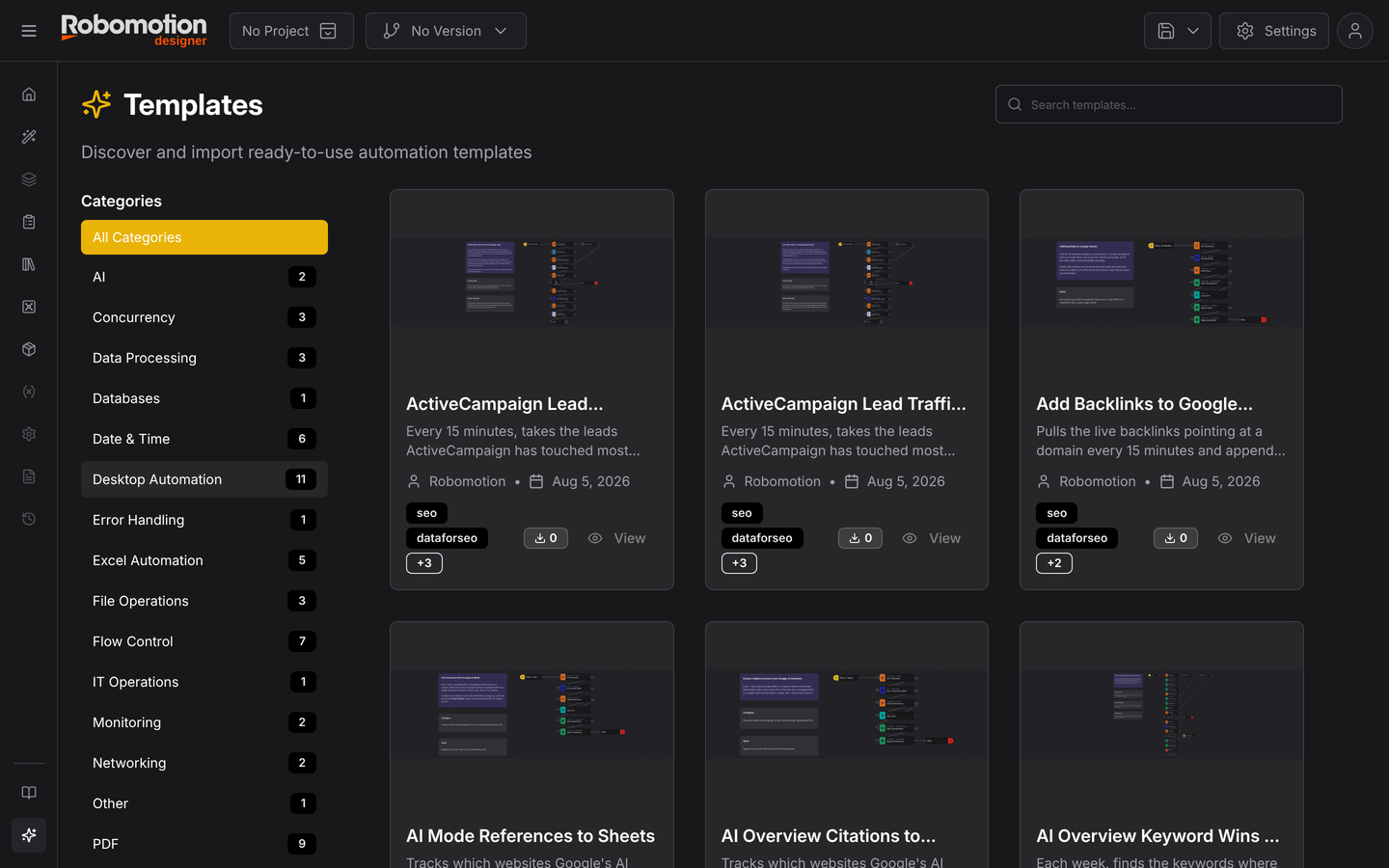
Importing one and taking it apart is the fastest way to learn how a non-trivial flow is put together, and it is how tutorials 4 to 7 work. The same library is browsable without signing in at robomotion.io/templates.
The rest of the home page
| Section | What it is |
|---|---|
| Quick Actions | New project, open an existing one |
| Recent Projects / All Projects | Your flows |
| Start with an example | The template gallery |
| Use Cases | Templates grouped by business process |
| No Project / No Version | The project and version selectors, top-left — these switch what the canvas is showing |
What a flow is
A flow is an automation project: nodes, and the connections between them. Build it here, then run it on a robot or schedule it.
Robots interact with applications the way a person does — keyboard and mouse — and also with more precise techniques such as addressing a web page element directly by XPath. See Automating a browser.
Next
- Tutorials — the seven ideas that make up the whole model
- Variable Manager · Knowledge Base · Form Builder
- Browser Inspect — picking page elements instead of writing selectors
- Versions — snapshots, and publishing a flow to robots
- Visual Diff — what changed between two points, on the canvas
- Logs — debug output, and a diff between two runs
- History — what changed in the flow, and when